Mac App + Sidecar Guide
Understand the DevClocked Mac App and Sidecar: what each one does, how tracking works, and how to set it up correctly.
The DevClocked Mac experience has two parts working together: the Main Mac App and the Sidecar. This guide explains what each component does, how tracking is captured, and how to use both for accurate session data.
Main Mac App vs Sidecar
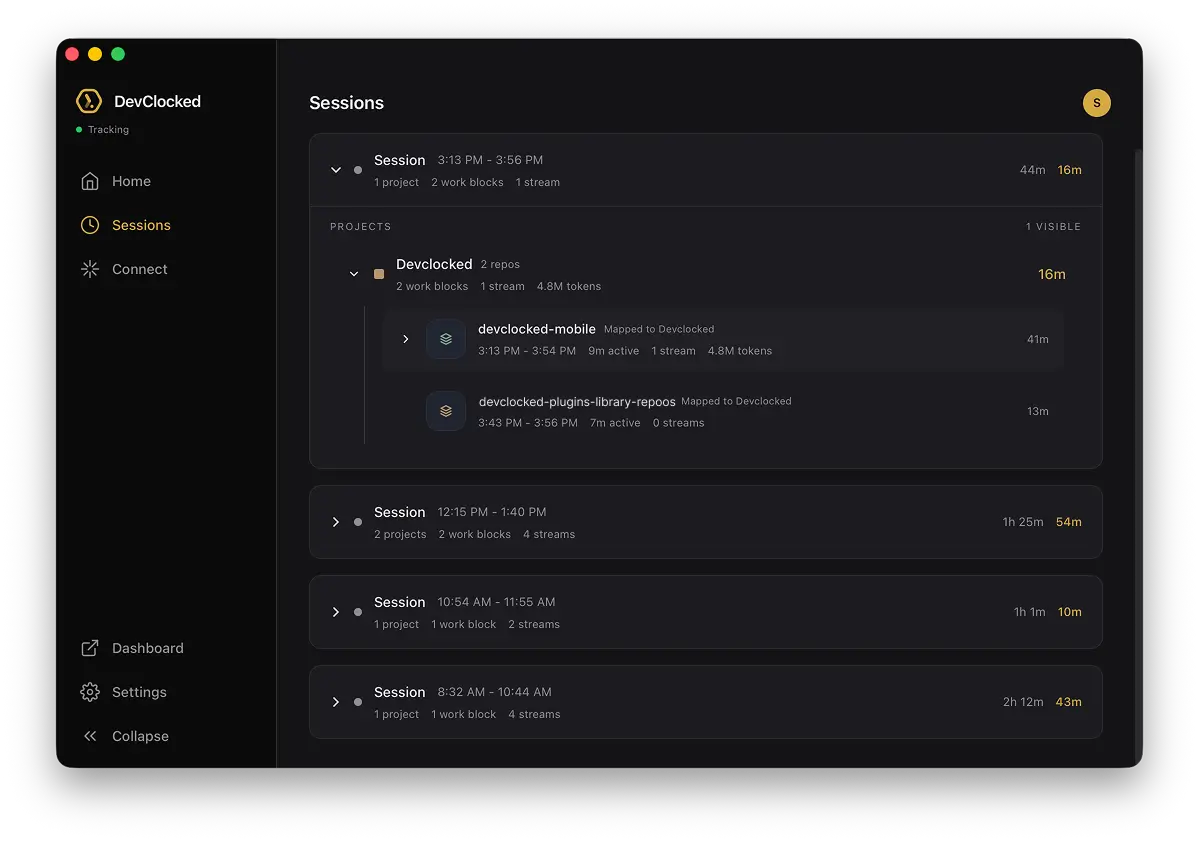
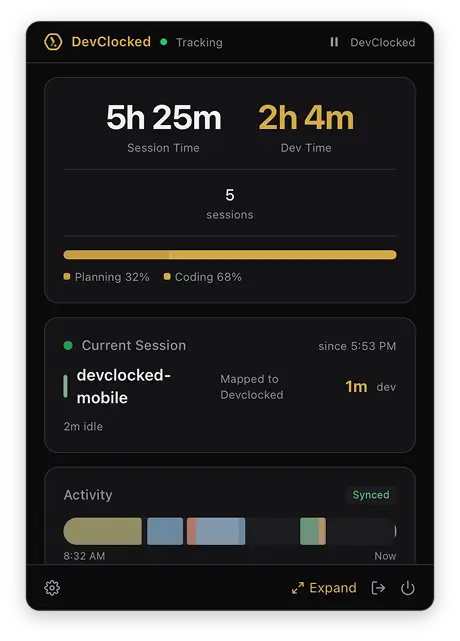
Main Mac App is your control center: session overview, project mapping, sync state, and settings. Sidecar is the compact always-on companion that stays out of your way while still showing live tracking context.
What Each Component Does
- Main Mac App: full session timeline, project attribution, work-block breakdowns, and deeper analytics views.
- Sidecar: glanceable active session state, current block, quick status, and lightweight controls while you work.
How Tracking Works
The Mac App continuously observes activity signals from your development workflow and groups them into coherent work blocks. Sessions are then attributed to the correct project whenever possible.
- Detects active development context from your machine activity
- Builds contiguous work blocks from active intervals
- Maps blocks to projects/repositories for clean reporting
- Syncs to DevClocked so dashboard, mobile, and billing views stay aligned
How to Use It Day to Day
- Launch the Mac App and sign in with your DevClocked account/API key setup.
- Keep Sidecar visible for live session awareness while coding.
- Use the Main App to review block attribution and correct project mapping if needed.
- Check sync status in-app to ensure latest sessions are uploaded.
Best Practices for Accurate Data
- Keep the app running during your coding day
- Name and map projects early so sessions classify correctly
- Review blocks once daily to catch ambiguous context quickly
Troubleshooting
Not seeing current activity? Verify the app is running and authenticated, then open Main App to confirm sync status.
Wrong project attribution? Update project/repo mappings in the app and recheck recent blocks.
Data missing on dashboard? Trigger a sync from the app and ensure network connectivity is active.
Was this page helpful?